
How to combine screenshots into one PDF on Mac
A single PDF can make a sequence of screenshots easier to send and review. Use the built-in Finder action for existing files, or create a PDF from a SnipMark session when you also need annotations.
SnipMark · macOS 14+
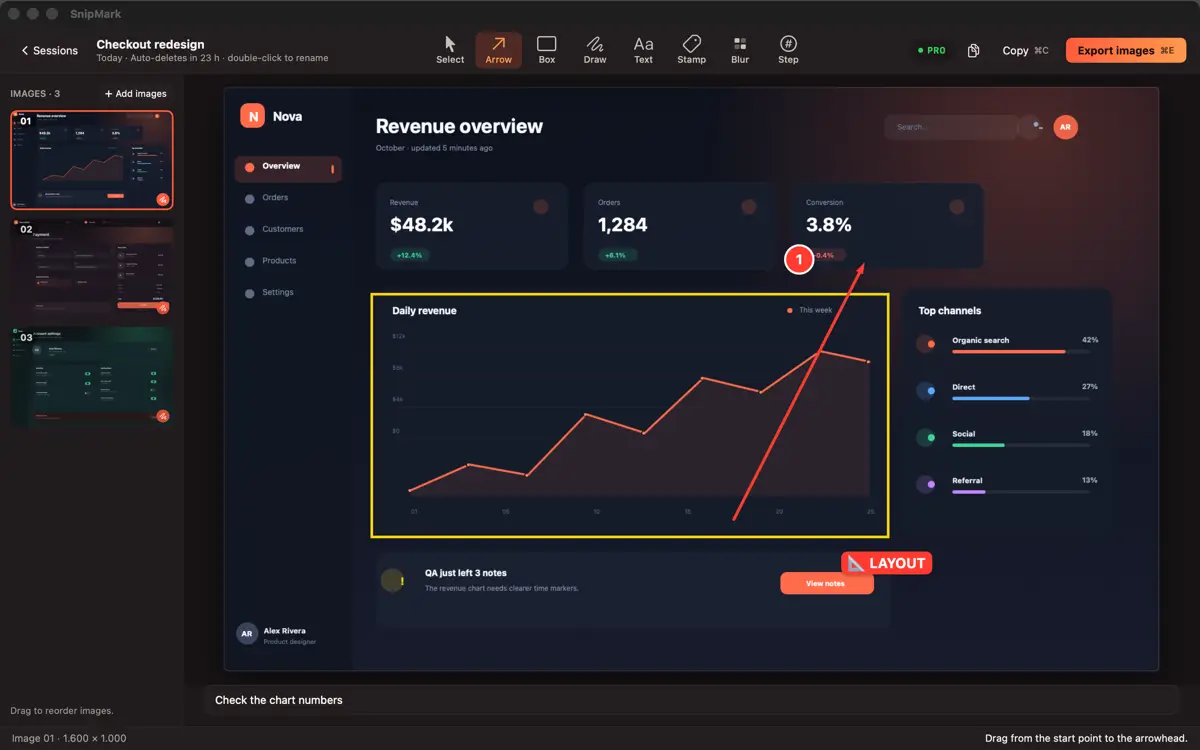
Combine existing screenshots with Finder
In Finder, select the screenshots you want to combine. Control-click the selection and choose Quick Actions → Create PDF. Finder creates a PDF containing the selected files. Open it and check the page order and readability before sharing.
If the action is unavailable, check the Apple instructions for combining files into a PDF.
Capture and annotate before exporting with SnipMark
In SnipMark, capture the screenshots needed for your task and use arrows or short labels to explain each step. See the capture and annotation guide if you need help with screen recording permission or choosing an area.
When the session is ready, open export and choose Merged PDF. This export mode requires SnipMark Pro. Check the PDF after export to confirm the pages and annotations look right. The SnipMark product page describes current availability and Free and Pro features.
PDF or one long image?
A PDF works best when recipients review printed handouts, multi-screen bug reports, or documentation page by page. For scrolling UI reviews or mobile conversations shared in chat, a stitched image may read faster without page breaks.
On Mac, SnipMark Pro also offers Long Stitch, which joins session images vertically. On iPhone and iPad, see our guide to stitching long screenshots on iPhone, or read the Mac long-image guide for desktop layout details.
Check page order, margins, and private information
Before sending either format, scroll every page in Preview to verify numbering, aspect ratios, and crop boundaries. Mixed vertical and Retina desktop captures can jump sharply in zoom scale if width alignment is ignored.
Inspect every screenshot for names, email addresses, API tokens, browser tabs, and notification banners. Use the privacy redaction guide if a frame needs blurring or solid masking, and check SnipMark support if a Quick Action or permission step is blocked.