
Screenshot didn't save to Desktop on Mac: how to fix it
macOS saves most screenshots to the Desktop automatically, so a missing file usually means the save location changed, the capture went to the clipboard, or the Desktop folder is not where you think it is.
SnipMark · macOS 14+
1. Check the save location in the Screenshot app
Press Shift-Command-5 to open the Screenshot toolbar, click Options and look at Save to. It can point at the Desktop, Documents, Clipboard, Mail, Messages or a folder you chose earlier. A single change here is the most common reason screenshots stop appearing on the Desktop.
Shift-Command-3 and Shift-Command-4 use the same setting, so fixing it once covers all three shortcuts.
2. The capture went to the clipboard
Holding Control while capturing copies the image to the clipboard instead of writing a file. If the screenshot appears when you paste into a document but never on disk, that is what happened.
With Save to set to Clipboard, every capture behaves this way until you change the option back.
3. The Desktop folder moved or lives in iCloud
If Desktop & Documents Folders is enabled in iCloud Drive settings, your Desktop is synced and its real location is inside iCloud Drive. Finder still shows a Desktop item, but files can take a moment to appear, and a full iCloud quota can stop the upload.
Check the Finder sidebar for iCloud Drive, then open Desktop from there. Searching with Command-F for the file name and limiting the search to This Mac also finds captures that landed somewhere unexpected.
4. Multiple displays and window captures
On a multi-display setup, Shift-Command-3 writes one file per display, and the numbering continues rather than restarting. A capture of a single window with Shift-Command-4 then Space also goes to the same save location.
If you use Stage Manager or a screen recorder that grabs the shortcut, the system capture may never run. Quit the competing app and try again.
5. When a capture tool fits better than the Desktop
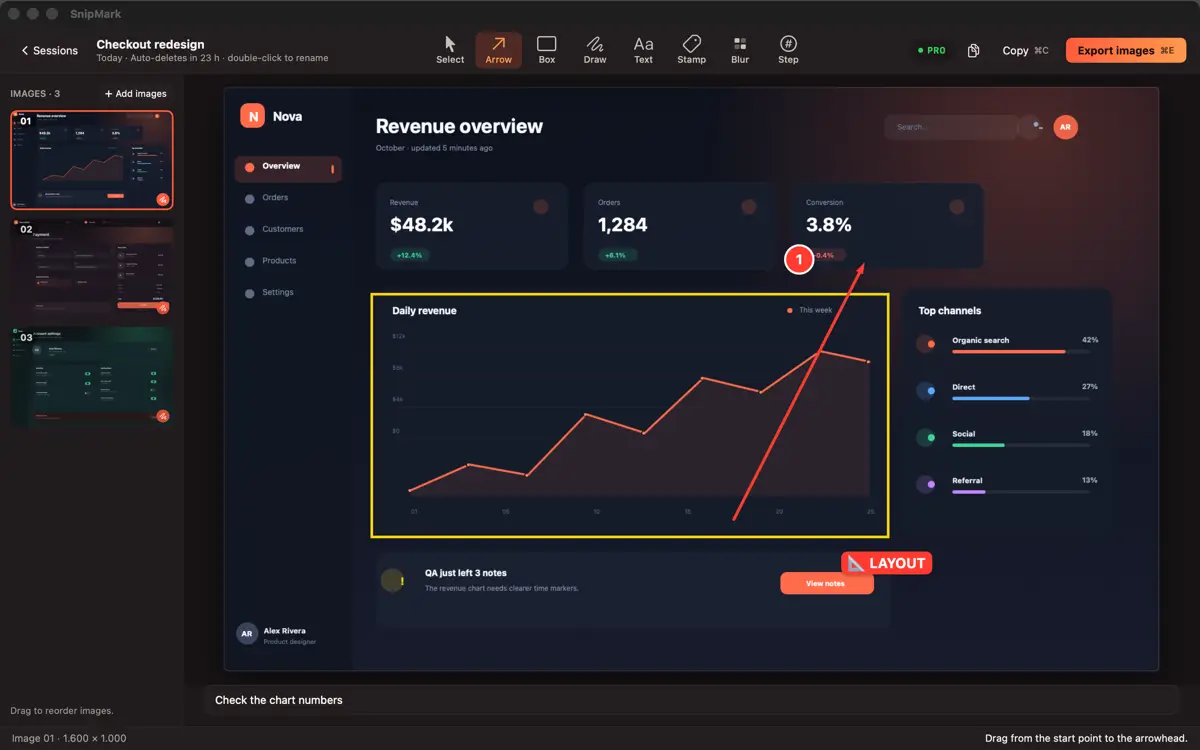
The Desktop is a working area, not a library: filenames are generic, related shots scatter, and older captures become hard to find. If screenshots are part of your daily work, SnipMark keeps captures in a workspace where you can annotate, rename in batch and export as PNG, JPEG, WebP, HEIC or PDF.
It runs on macOS 14 and later, and the same purchase covers the iPhone app. The capture and annotate guide covers the editing side, and the file size guide covers exporting for email or upload limits.