What is System Data (Other) on Mac, and how can you review it?
A large System Data category—labeled Other in older macOS versions—can make it hard to see why your startup disk is full. It is a macOS reporting bucket, not a single folder or a list of files that are all safe to delete.
DiskLuma · macOS 12+
What does System Data include?
Apple describes System Data as files that do not fit the other storage categories. In practice, that often includes app caches, developer build data, logs, Mail downloads, Time Machine local snapshots, and app support or container folders; the label alone does not identify a particular file or mean the contents are unnecessary. See Apple’s storage guidance.
1. Check the storage overview
On macOS Ventura 13 or later, choose Apple menu → System Settings → General → Storage. On older macOS versions, choose Apple menu → About This Mac → Storage. Review the available categories and their details before deciding what to investigate.
2. Review accessible files, not the category label
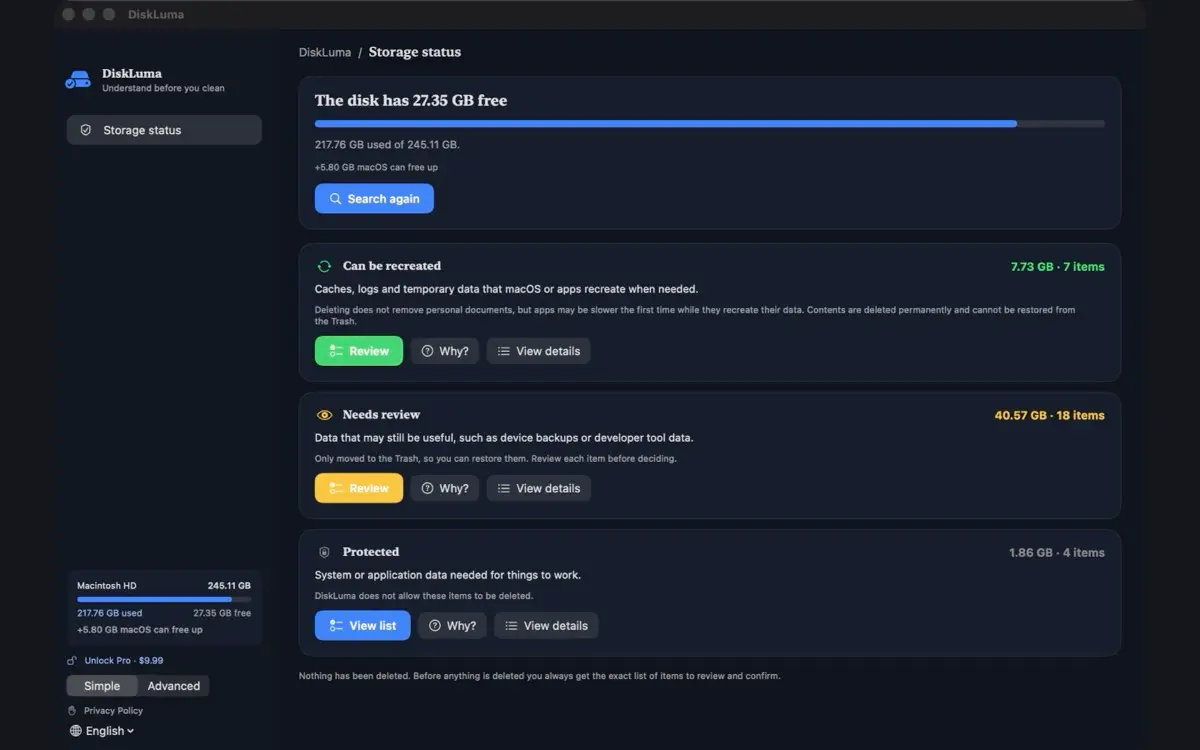
DiskLuma can scan an accessible folder you select and show large files, folders and suggested cleanup groups. A home-folder scan is not a complete analysis of System Data across the disk, and DiskLuma does not promise to remove the entire category. See how to check Mac storage for the scanning steps.
Some temporary files can be recreated, but rebuilding them may take time or require downloads. App data, libraries and project files can contain work you need. Check the path and purpose of each item, keep a backup and leave uncertain items alone.
3. Read the confirmation before cleaning
DiskLuma shows which selected items will be permanently deleted and which will go to the Trash. Permanently deleted items cannot be restored from the Trash. Review the selection and cancel if you are unsure.
If you want to remove an app, check its developer’s uninstaller first and review associated data separately. The app removal guide explains the options.
Why does DiskLuma show a different amount?
macOS Storage reports disk-wide categories; a scan of one folder covers only files the app can access there. Other users’ data, system locations and unselected folders may account for differences. The DiskLuma product page describes features and current availability.