
Finding large files on a Mac: where they hide
A full disk is usually a handful of large files, not thousands of small ones. Finding them means scanning the whole home folder rather than sorting one folder at a time in Finder — and then deciding whether to delete or move.
DiskLuma · macOS 12+
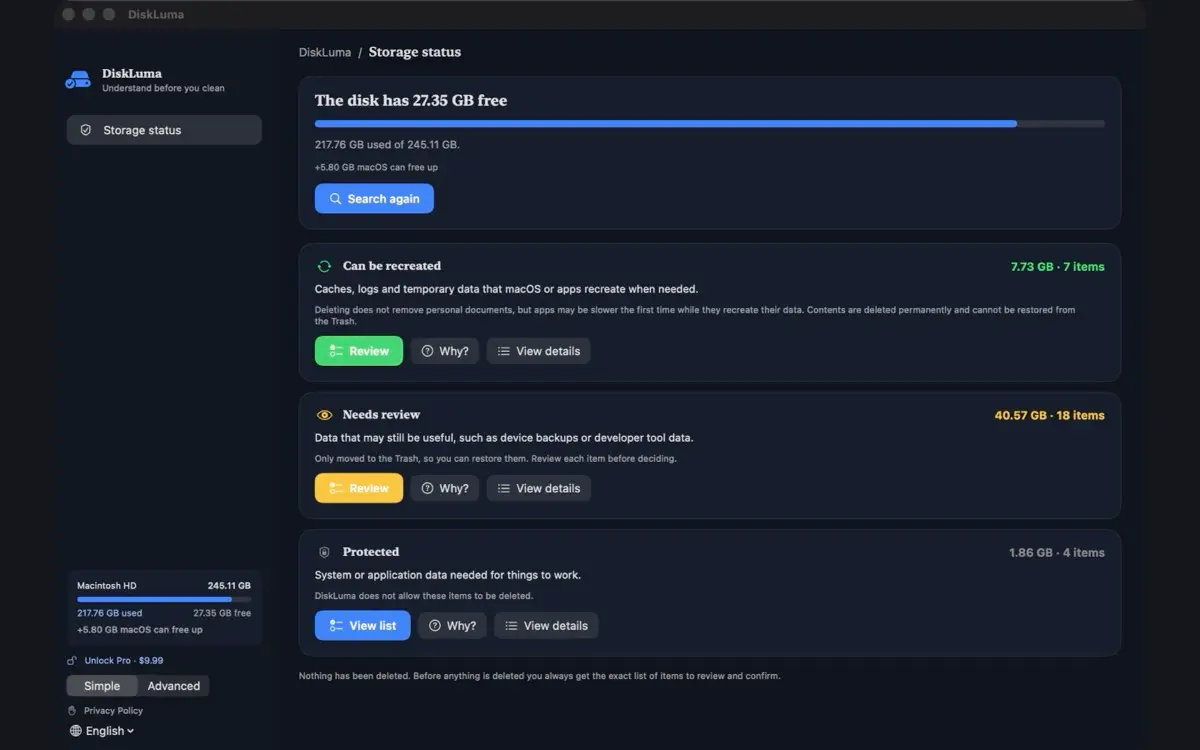
1. Sorting in Finder only looks at one folder
Finder's size column applies to the folder you opened. The 8 GB file that filled your disk may sit three levels deeper, in a folder you never open, or inside a package that Finder shows as a single item.
A recursive scan of the home folder is what actually finds them. DiskLuma walks the folders you grant access to and lists files above a size threshold, so the answer is one list instead of a hunt.
2. Pick a threshold that matters
DiskLuma starts at 500 MB, which filters out the noise while still catching the files worth a decision. Raise it to 1 GB or more when the disk is large; lower it only when you are hunting a specific project.
Size alone does not tell you whether a file is important. A 600 MB video export you already published is disposable; a 600 MB project archive may not be.
3. Filter by when you last opened it
The useful second filter is age. A file you have not opened in a year is a better candidate than one from last week, even when both are the same size. DiskLuma can restrict results to files untouched for a number of days, and filter by kind so images, video, archives and disk images are not mixed together.
Treat the result as a shortlist, not a verdict. Opening the containing folder is still the step that tells you what you are looking at.
4. Check for duplicates before deleting
Large files are often duplicated: the same video exported twice, the same archive downloaded again under a different name. Comparing content first turns two deletions into one and avoids removing the copy something still points at. The duplicate guide covers that comparison.
5. When deleting is the wrong move
Some large folders are still in use: a media library, a virtual machine, an editing project. Deleting them breaks the app that opens them. Moving them to another drive keeps them available.
DiskLuma can move a folder to an external drive and leave a link in the original place. The copy is verified entry by entry before the link is created, and the original is kept as a backup — so the internal disk is not freed until you clean that backup yourself. The destination must be APFS or Mac OS Extended, the drive must stay connected, and not every app works through a link. Read the confirmation before agreeing to it.
6. Confirm the space and keep a record
After deleting, empty the Trash on purpose and compare System Settings → General → Storage. After moving, check that the app still opens its folder before you remove the backup.
If the free space still does not match, the guide on space that does not return covers the usual causes.