
Mac storage is full: what to delete first
When the startup disk fills up, macOS slows down, updates fail and apps start refusing to save. Before deleting anything, work out what is actually large, then remove in an order that leaves you able to undo a mistake.
DiskLuma · macOS 12+
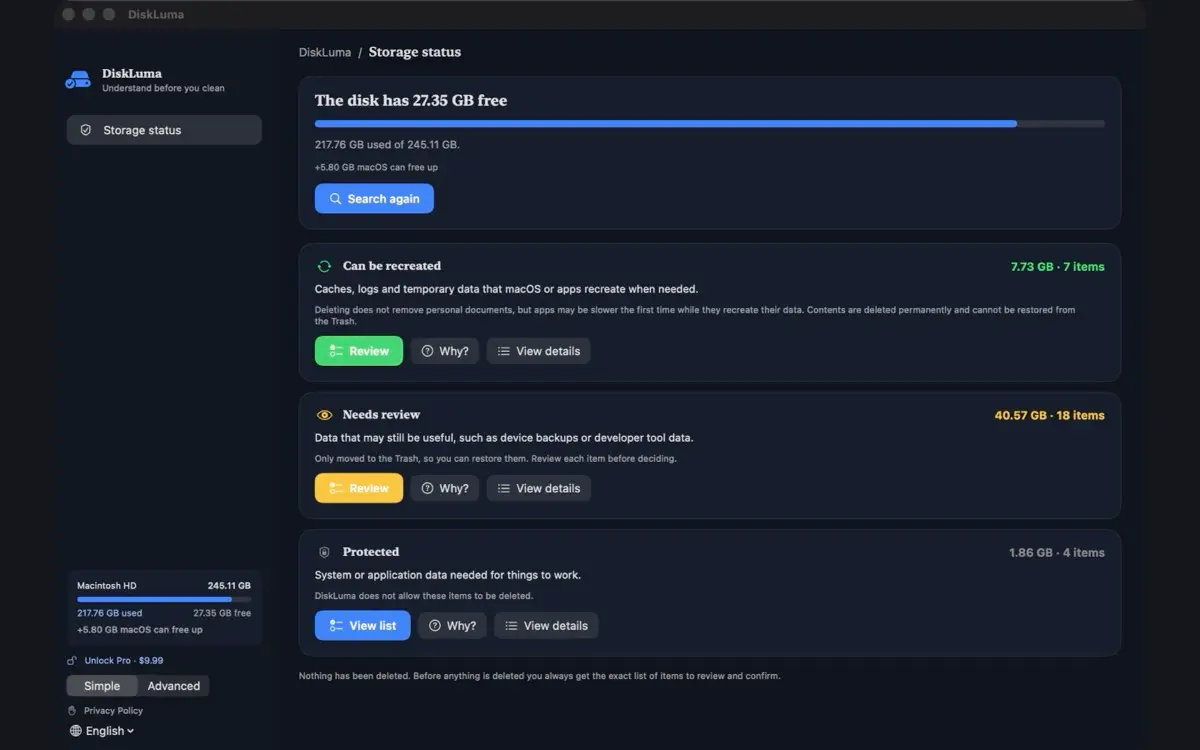
1. See what is actually using the space
Open System Settings → General → Storage on macOS 13 or later (System Preferences → Storage on macOS 12). macOS groups space into categories such as Applications, Documents and System Data. The categories tell you the shape of the problem but not which folder is responsible.
A size map is more direct. DiskLuma draws your folders as a treemap, so a single huge folder stands out immediately. The storage check guide walks through reading that map.
2. Start where deletion is safe and reversible
Duplicate files are the cheapest space to recover because the copy you keep is identical. Sorting by name is unreliable: two files can share a name and hold different content, and the same photo can sit under two names. DiskLuma compares file contents with SHA-256, so a match means the bytes match.
Old downloads and installers are the second pass: disk images you already mounted, archives you already extracted, versions you no longer run. The duplicate finder guide covers the comparison step in detail.
3. Caches and app leftovers: understand before removing
Caches are files an app rebuilds when it needs them again. Removing a cache costs time, not data, and is usually safe while the app is closed. App leftovers are different: they are preference files, containers and support folders left behind by apps you already removed. Deleting the wrong container can reset an app you still use.
Do not hand-delete inside ~/Library unless you know what the folder belongs to. DiskLuma lists these groups with sizes and moves what you confirm to the Trash rather than deleting it permanently.
4. Do not delete these
Leave /System and /Library alone, do not remove application bundles by dragging files out of them, and do not delete the Time Machine backup on an external drive to free internal space — that is a separate disk.
If the largest category is System Data rather than your own files, the cause is usually snapshots, caches and logs rather than documents. The System Data guide explains that case.
5. Empty the Trash, then verify the space came back
Moving a file to the Trash does not free space; emptying the Trash does. After a cleanup, reopen the Storage panel and compare the free space before and after. If the number barely moved, the files are still somewhere — most often in the Trash, or held by an app that has not released them.
Do not empty the Trash immediately after a large cleanup. Keep it for a day so a wrong call is a two-click restore.
What DiskLuma does, and what it does not
DiskLuma is a native macOS app that reads folder sizes on your Mac and shows where space went. Items you select are moved to the Trash unless the confirmation marks them safe — rebuildable caches, logs and developer data are cleared in place and cannot be recovered from the Trash. Scanning happens on the device; file lists and folder names are not uploaded.
It does not run a background "optimiser", and does not promise a fixed number of gigabytes. macOS decides what it can free, and the result depends on what is actually on the disk.