
How to find duplicate files on Mac
Duplicate downloads and copied folders can take up space, but identical files may still be needed in different locations. Compare copies and decide which one to keep before deleting anything.
DiskLuma · macOS 12+
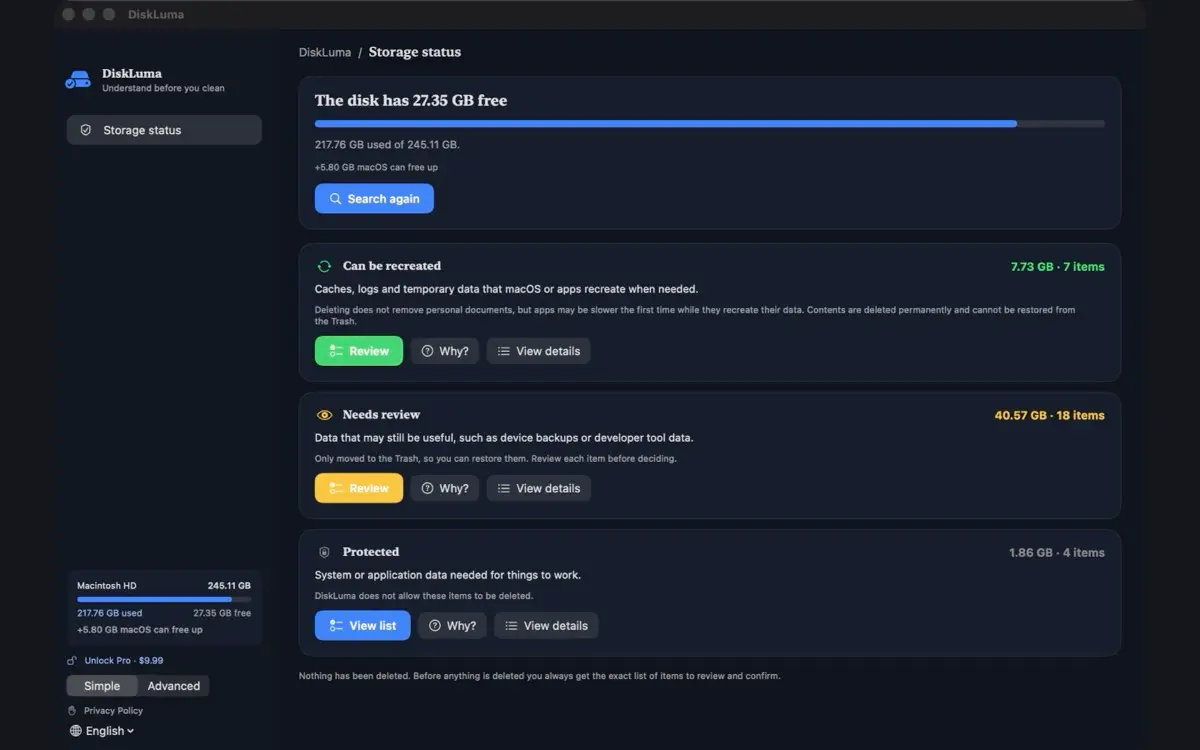
1. Start with a folder you understand
Check a familiar location such as Downloads or Documents. In Finder, sort files by name or size and inspect candidates; matching names or sizes alone do not prove that contents are identical. Avoid deleting files inside app bundles or libraries.
For an overview of storage before you start, see how to check Mac storage.
2. Compare exact duplicates with DiskLuma
DiskLuma’s duplicate finder scans an accessible folder you choose and compares file contents using SHA-256. In the detailed view, open duplicate files, choose a folder and start the scan. Review each group and its paths before selecting copies to move.
The scan groups exact content matches, not visually similar photos. It skips hidden files, the home Library folder and contents of packages such as apps and Photos libraries. Its minimum size filter starts at 1 MB, so smaller files are not included.
3. Keep the right copy
Check the path and context of each file. A copy in a project folder, shared folder or synced location may be needed even if another file has identical contents. Keep a backup and leave uncertain files alone.
DiskLuma requires at least one copy to remain in each group. Selected files are checked again before being moved to the Trash; inaccessible or changed files can be skipped. Review the Trash before emptying it, because files there still occupy storage.
What if I want to review my Photos library?
DiskLuma does not search inside the Photos library package. For photos managed by Apple Photos, use the duplicate tools provided by Photos and review its suggestions there.
Can I use DiskLuma to scan without deleting?
Scanning does not remove files. Review the results and close them without confirming a move to Trash. Visit the DiskLuma product page for current availability and the differences between Free and Pro, or see DiskLuma support for help.