
Deleted files still take space on Mac: where the space went
You deleted a large folder, emptied the Trash, and the free space barely changed. The files are usually not gone — they are in a second location macOS keeps, or an app is still holding them.
DiskLuma · macOS 12+
1. Check the Trash of the right disk
Each volume has its own Trash. A file deleted from an external drive sits in that drive's Trash, not in the one on your desktop, so emptying the main Trash does nothing for it. Open the Trash from the Finder sidebar and confirm which volume it belongs to.
Also check that the Trash was actually emptied. On recent macOS versions, files deleted from iCloud Drive appear under Recent Deleted in the Files app on iPhone and iPad as well.
2. Local snapshots from Time Machine
When Time Machine is enabled and the backup disk is not connected, macOS can keep local snapshots on the startup disk. They are real space usage and do not appear as ordinary files.
You can list them without changing anything by running tmutil listlocalsnapshots / in Terminal. Removing snapshots is a system operation: macOS thins them on its own, and forcing removal weakens your ability to restore recent versions. If snapshots are the cause, the honest answer is often to connect the backup disk rather than to delete them.
3. Photos and iCloud copies
Items in Recently Deleted in Photos count against your storage until the 30-day window ends. iCloud Drive works the same way: a file removed on one device stays in Recently Deleted for a period before it is removed everywhere.
If Optimise Mac Storage is on, some files exist only in iCloud and reclaiming them locally does not change your iCloud quota — two different numbers that are easy to confuse.
4. An app is still holding the file
A process that opened a file keeps it on disk until it closes the handle. This is common with video editors, virtual machines and sync clients. Quit the app, or restart the Mac, then compare free space again.
A restart is also the quickest way to clear temporary files that macOS has not reclaimed yet.
5. Confirm where the space actually is
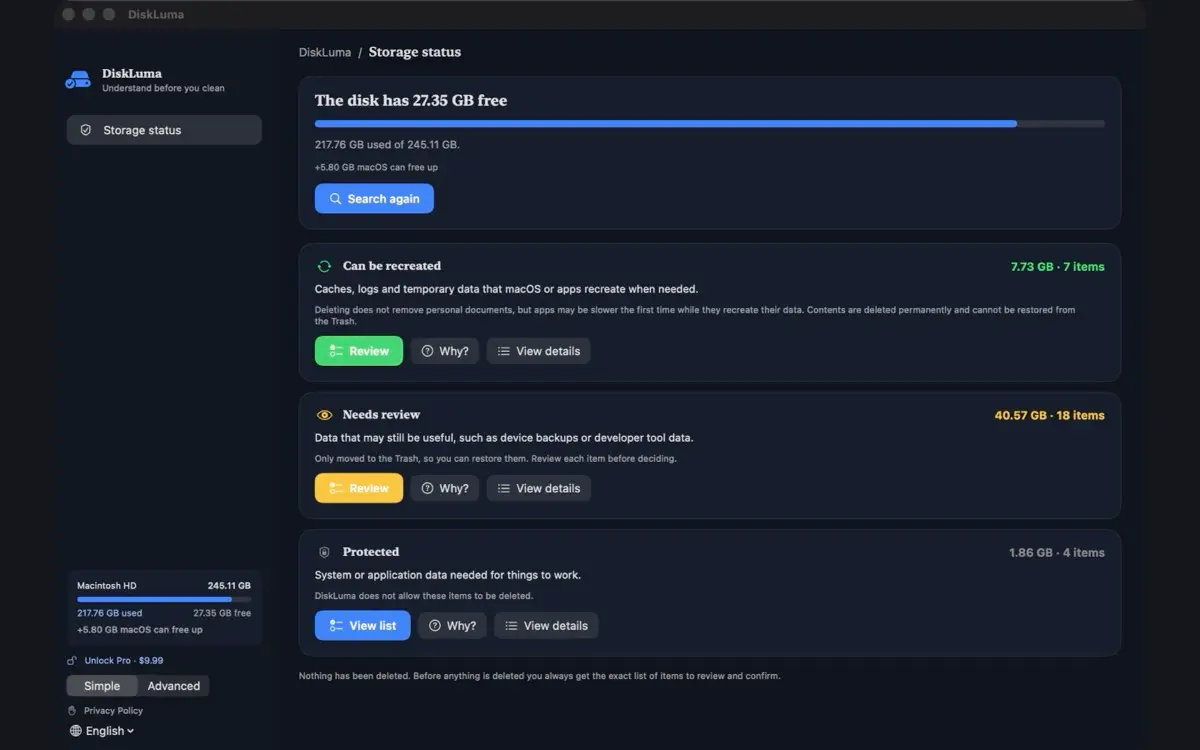
Compare System Settings → General → Storage before and after. If the total still does not match what Finder shows, look at the folder level: DiskLuma rescans on demand and shows which folder grew, which is faster than guessing category by category.
The storage check guide explains how to read the map, and the System Data guide covers the case where the missing space sits in the System Data category.
6. What this means for cleanup
Free space that does not return is usually a sign that the cleanup hit the wrong layer. Check Trash, snapshots, cloud copies and open apps in that order before deleting more files — deleting further rarely helps and increases the risk of removing something you need.