
What is taking up space on your Mac?
DiskLuma by Arelunio Labs shows which files and folders take up space. Start with your home folder, then use the results to decide what to look at more closely.
DiskLuma · macOS 12+
1. Choose your home folder
When you first open DiskLuma, choose your home folder and grant access. The scan covers the files and folders the app can access within that location.
2. Find the largest files and folders
Start the scan. In the simple view, work through the suggested groups. In the detailed view, use the storage map and the list of large files to locate a particular file or folder.
Before removing a large file, check whether you still use it or whether it belongs to a project or media library.
3. Review the cleanup groups
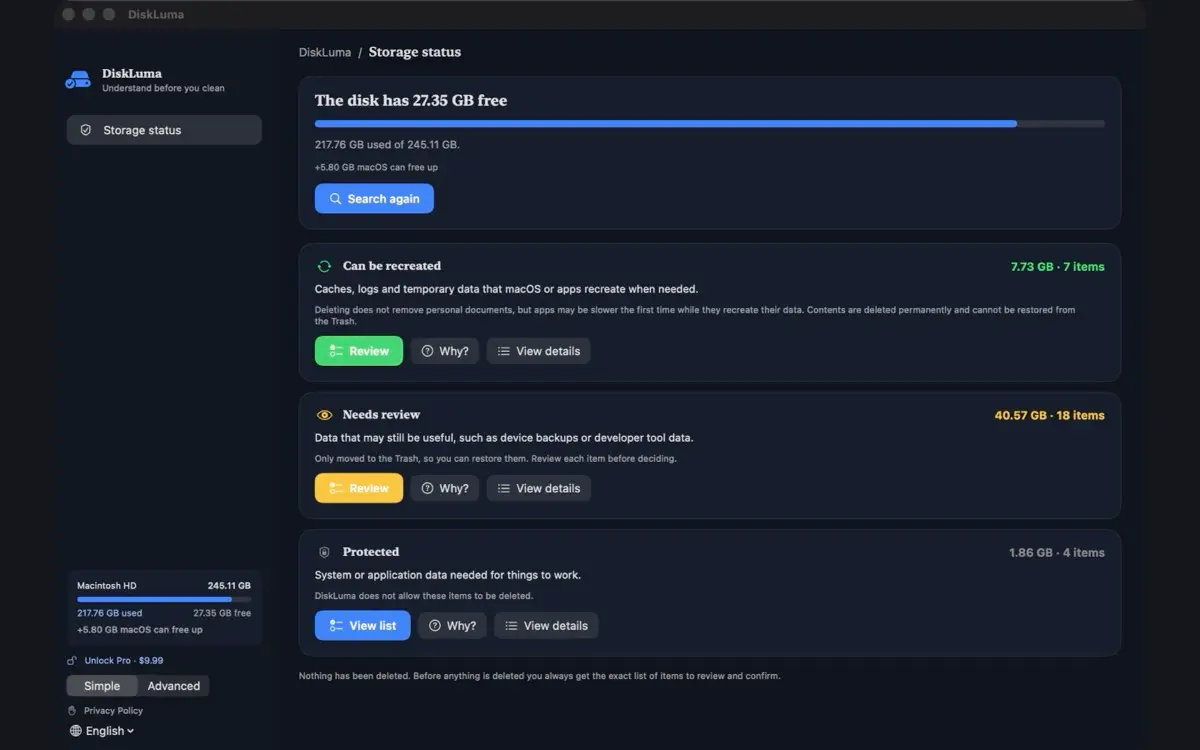
Some caches and temporary files can be regenerated automatically. Items marked for review need your judgment, and DiskLuma prevents removal of protected items.
Read the confirmation before cleaning up. It shows which items will go to the Trash and which will be deleted permanently. If you're unsure about an item, leave it in place.
Why can the scan differ from macOS Storage?
macOS Storage describes the whole disk, while a home-folder scan covers only accessible files in that folder. Other users’ files, system data and locations you did not select can account for the difference.
How do I check available storage in macOS?
On macOS Ventura 13 or later, open Apple menu → System Settings → General → Storage. On older versions, choose Apple menu → About This Mac → Storage. macOS shows disk-wide categories; use DiskLuma to examine the accessible folder you select. See Apple’s storage instructions.
Why has free space not increased after deleting files?
Files moved to the Trash still occupy space until the Trash is emptied. Open the Trash and check its contents before emptying it; items deleted permanently cannot be recovered from the Trash. Storage figures can take time to update.
Can I scan without deleting anything?
Yes. You can review the results and close the analysis without confirming a cleanup. See DiskLuma support for help with folder access or recovering a file.
For duplicate downloads and copied folders, see how to find duplicate files on Mac.
To review apps and related files, see how to uninstall apps on Mac.
For the macOS category, see what System Data means and how to review it.