
How to clean Xcode DerivedData and developer caches on Mac
Developer toolchains silently consume 20 GB to 80 GB inside System Data on Mac, yet almost none of those folders show up clearly in macOS Storage settings. Clearing the right build artifacts reclaims space fast—while touching archives, simulators, or dot-folders blindly can break toolchains or lose keys.
DiskLuma · macOS 12+ (Mac App Store and Direct DMG)
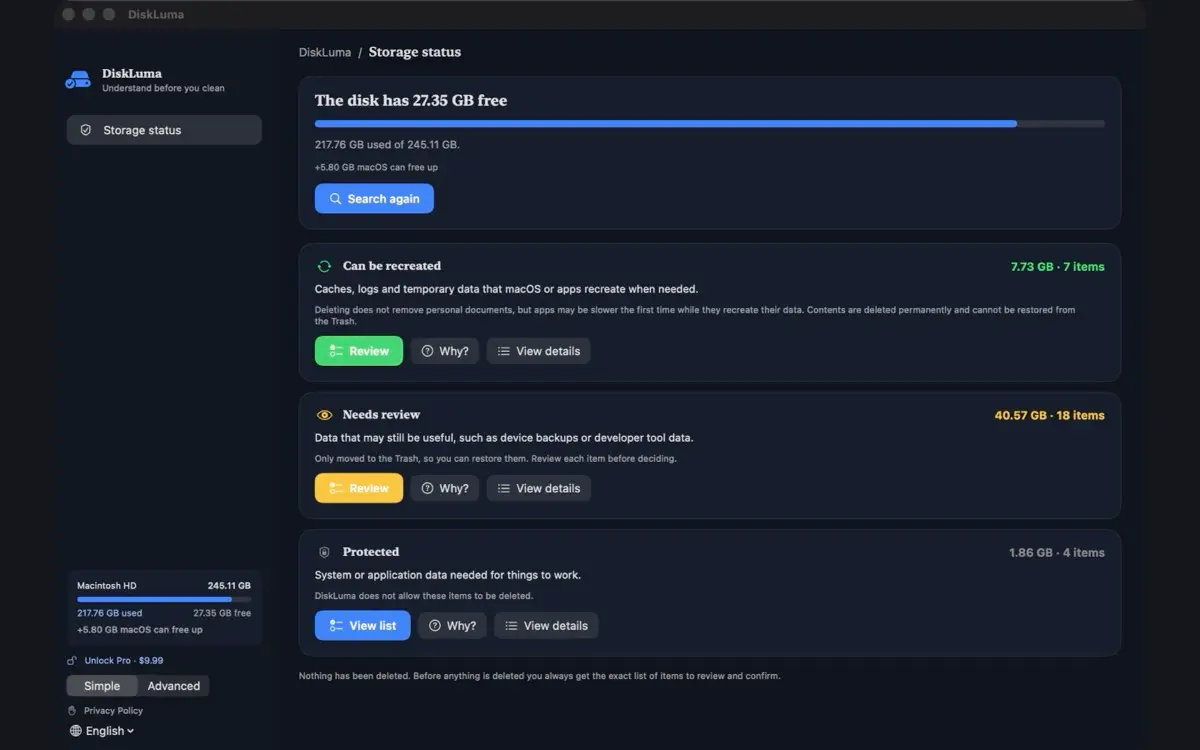
1. Safe to clear: rebuildable Xcode and package caches
Folders marked SAFE hold compiled artifacts or downloaded tarballs that your build tools automatically regenerate the next time you compile or install packages. Clearing them only makes your very next build or download slightly slower:
Xcode build & simulator caches: ~/Library/Developer/Xcode/DerivedData (including custom -derivedDataPath folders containing info.plist and Build), ~/Library/Developer/Xcode/UserData/IB Support, ~/Library/Developer/Xcode/iOS DeviceSupport (Xcode re-fetches symbols when you reconnect a physical iPhone), and ~/Library/Developer/CoreSimulator/Caches.
Package managers & mobile runtimes: ~/Library/Caches/CocoaPods (pod install restores), ~/Library/Caches/Homebrew, ~/Library/Caches/Yarn, ~/.npm/_cacache, ~/.gradle/caches, and ~/.pub-cache/hosted (pub get restores). Remember that rebuildable caches marked safe are cleared permanently in place, bypassing Trash recovery.
2. Handle with caution: Xcode Archives, Simulators, and .rbenv
Some developer folders look huge in treemaps, so it is tempting to wipe the entire parent directory under ~/Library/Developer. Treat CAUTION folders separately instead of nuking them wholesale:
Xcode Archives (~/Library/Developer/Xcode/Archives): Holds signed app builds and dSYM symbols needed to symbolicate crash logs from released versions. Keep recent release archives and remove only old builds you no longer support.
CoreSimulator Devices (~/Library/Developer/CoreSimulator/Devices): Contains full iOS runtime disk images and local test data. Prefer pruning dead runtimes with xcrun simctl delete unavailable rather than deleting the whole folder blindly.
Global toolchains (.rbenv, .cocoapods, full .pub-cache): Deleting ~/.rbenv can break CocoaPods or Fastlane setups pinned to specific Ruby versions, and wiping global .pub-cache removes tools installed via pub global activate.
3. Never auto-delete: SSH keys, cloud credentials, and config dot-folders
When digging into home-folder dotfiles, keep a strict boundary around credentials and environment settings. Folders classified as NEVER include ~/.ssh, ~/.gnupg, ~/.aws, ~/.config, ~/Library/Keychains, and ~/.claude, alongside personal folders like Documents and Desktop.
Cleaning scripts that recursively match any hidden cache pattern without checking directory ownership or explicit allowlists risk destroying signing keys and local tool configurations.
4. Inspect developer caches safely with DiskLuma
DiskLuma scans on device and classifies each developer path with clear SAFE, CAUTION, or protected boundaries plus a plain explanation of what happens if removed—never pre-selecting files automatically before you review the exact removal queue.
In the Direct DMG edition, DiskLuma scans broader macOS-permitted home and developer paths cleanly; in the Mac App Store edition (macOS App Sandbox), you grant explicit folder access via the system open panel (for example selecting ~/Library/Developer or your home folder). Free includes full disk mapping, duplicate inspection, single-item cleanup, and your first multi-item cleanup; Pro ($9.99 one-time) unlocks unlimited batch cleanups.
Want the broader rulebook across app caches, Mail downloads, and System Data? Read our guides on deleting cache files on Mac, understanding System Data, and what to delete first when Mac storage is full. Check DiskLuma support if you need folder access help.