
How to compress photos and videos under a size limit
When email, Discord, or an upload form rejects a file for being too large, guessing quality sliders wastes time. Setting a target size per file lets you check actual output bytes before sending.
SizeMino · iOS 18+, macOS 15+, Android 11+
1. Check whether the limit uses decimal KB or MB
Most upload forms, messaging apps, and email providers measure limits in decimal megabytes or kilobytes. SizeMino uses 1 KB = 1,000 bytes and 1 MB = 1,000,000 bytes, so a 200 KB target is checked against 200,000 bytes.
If a file is already smaller than your target, keep the original instead of re-encoding it unnecessarily.
2. Choose a KB, MB, or % limit in Fit a limit
Select your photo or video using the system picker, Finder, or Share sheet, then switch to Fit a limit. Enter an exact KB or MB limit per file, or switch to percentage mode to shrink each file by a share of its own original size.
For photos, you can keep original pixel dimensions or combine Fit with a size cap such as Full HD (1920 px) or custom pixels so SizeMino resizes first and compresses toward the limit.
3. How PNG transparency and unreachable limits behave
Opaque PNG screenshots convert automatically to JPEG when fitting a KB or MB cap, while transparent PNGs keep their alpha channel and warn upfront if a strict byte cap cannot be met cleanly. For very long videos or extreme sub-16 KB targets, choose between Lower resolution first (retrying once at a smaller dimension) or Best effort with a clear badge if the target cannot be met cleanly.
Nothing is claimed as a pass unless the verified output file actually meets the byte limit. If you select an explicit resolution cap alongside Fit, SizeMino scales first before targeting the limit.
4. Compare visually, keep order, and recompress from Results
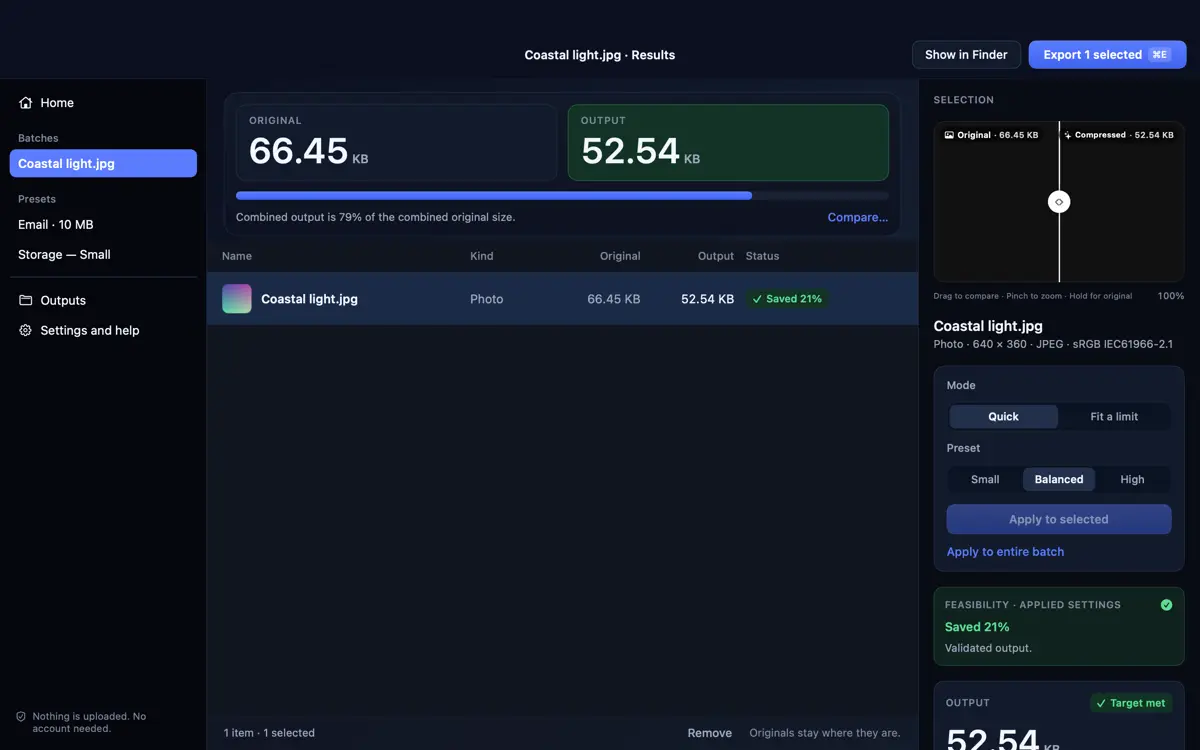
In Results, drag the split comparison slider, zoom in smoothly, or hold to view the untouched original alongside the compressed output. Items stay in your exact selection order for batch saving to Files or the Share sheet.
If an output stays slightly over target or looks too soft, adjust your preset or MB target right from Results—SizeMino always recompresses from your untouched original. Read more on the SizeMino product page, batch resizing photos, SizeMino support, or reducing video size on iPhone and Mac.