
How to batch resize and compress photos on device
Camera photos routinely weigh several megabytes each at 12 MP to 48 MP. Resizing dimensions and compressing in one local batch prepares dozens of photos for web forms, email, or chat without giving up your originals.
SizeMino · iOS 18+, macOS 15+, Android 11+
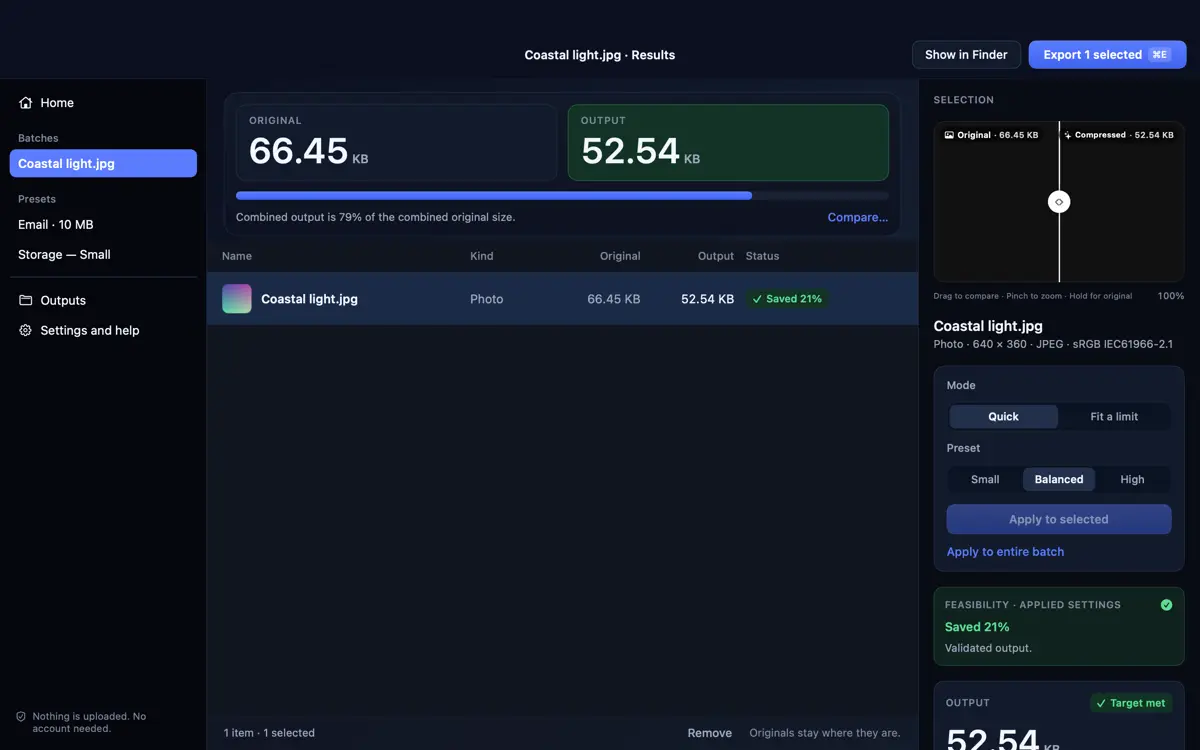
1. Pick only the photos you want to shrink
On iPhone, iPad, and Android, SizeMino uses the native system photo picker or Share sheet, so you grant access only to selected items instead of your whole library. On Mac, drag folders or files straight into the window or use Finder.
Supported formats include JPEG, HEIC, and PNG on Apple devices (16-bit RGB PNG up to 24 MP; other supported photos up to 8-bit and 100 MP), and JPEG, PNG, HEIC, and WebP photos on Android.
2. Choose Quick caps or standard Size options
Quick presets cap the long edge automatically (Small at 1600 px, Balanced at 2560 px, High at 4096 px) to save space while preserving aspect ratio. SizeMino explains any resize before and after compression.
Need exact framing? Open Size and pick 4K (3840 px), 2K QHD (2560 px), Full HD (1920 px), HD (1280 px), SD 480p (854 px), 25%/50%/75%, a custom pixel long edge, or Original. Options larger than your photo are hidden or disabled so images are never upscaled.
3. Handle transparent vs. opaque PNGs correctly
When you turn on Fit a limit, SizeMino checks whether a PNG actually contains transparent pixels. Opaque PNG screenshots convert automatically to JPEG so they can shrink to small KB targets cleanly.
If a PNG has real transparency (such as an app icon or UI cutout), SizeMino keeps the alpha channel intact and warns you upfront if strict byte limits cannot be met in lossless PNG.
4. Preserve your exact selection order and check results
SizeMino processes items and builds results in the exact order you added them, and keeps that same order when saving to Files or opening the Share sheet. Drag-and-drop replacements keep their slot.
Use the interactive split slider, synchronized zoom, and hold-for-original gesture in Results to verify fine text, product photos, or UI elements before saving.
5. Protect originals and keep storage tidy
If an image is already smaller than your target (with Auto sizing) or compression yields no savings, SizeMino lets you keep the untouched original instead of writing a larger duplicate.
Originals remain untouched in Photos, Gallery, or Finder. Exported copies are written only when you choose Save or Share, and temporary exported outputs clear automatically after 7 days. See how to hit exact KB or MB limits, how to reduce iPhone and Mac video size, SizeMino support, or visit SizeMino.